 To Purge the Wait List:
Open the Purge Wait List screen:
Open the Manager's Commands Screen:
From the Full Menu => Other section, click Manager's Screen.
Click the icon on the left for the Full Menu.
 OR
OR 
This will display the Full menu in a tabular form, with four sections, Registration, Status, Cashier and Other.
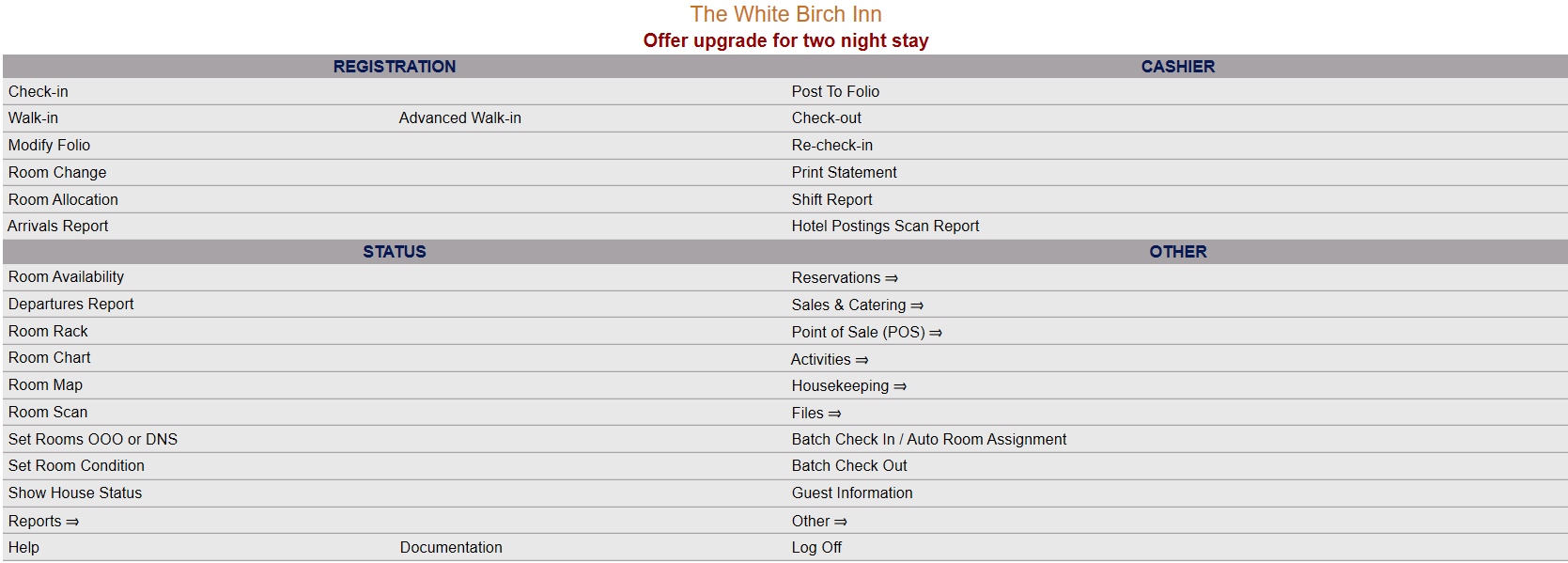 OR
OR 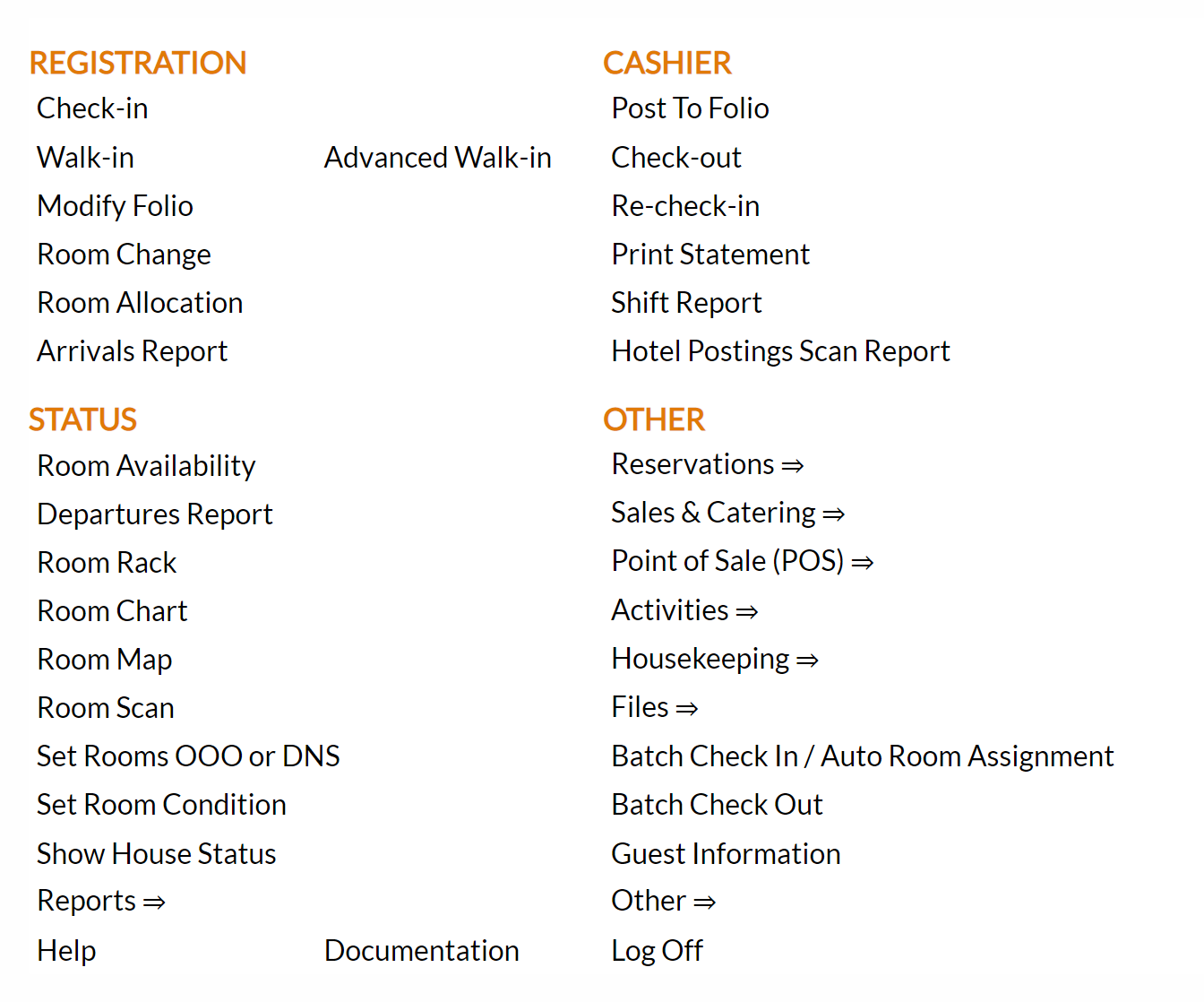
Select Other from the Other section.
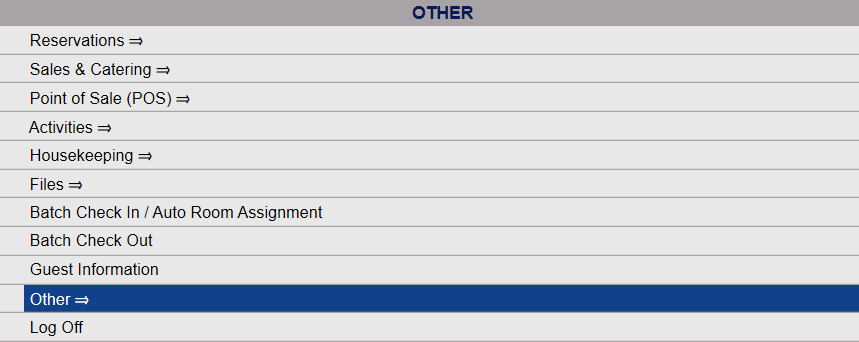 OR
OR 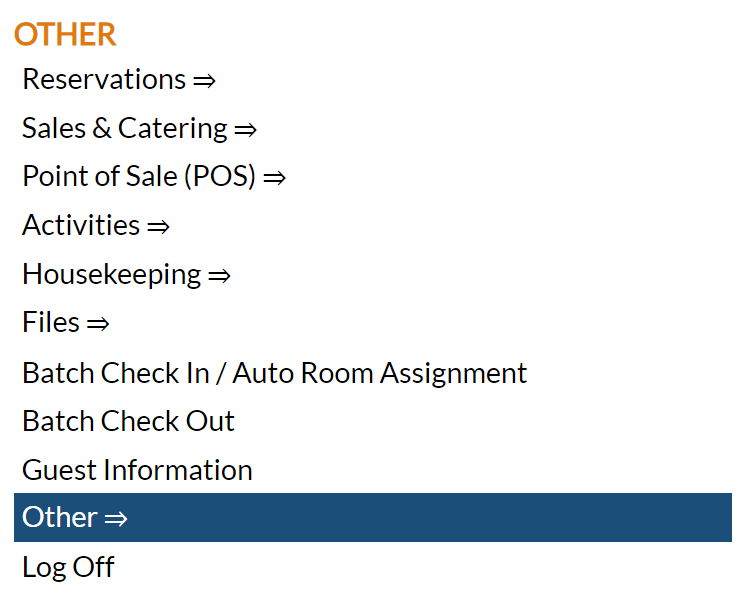
This will take you to the Other Front Desk Tasks Menu, which has four sections, Other List 1, Other List 2, Documents and Web.
 OR
OR 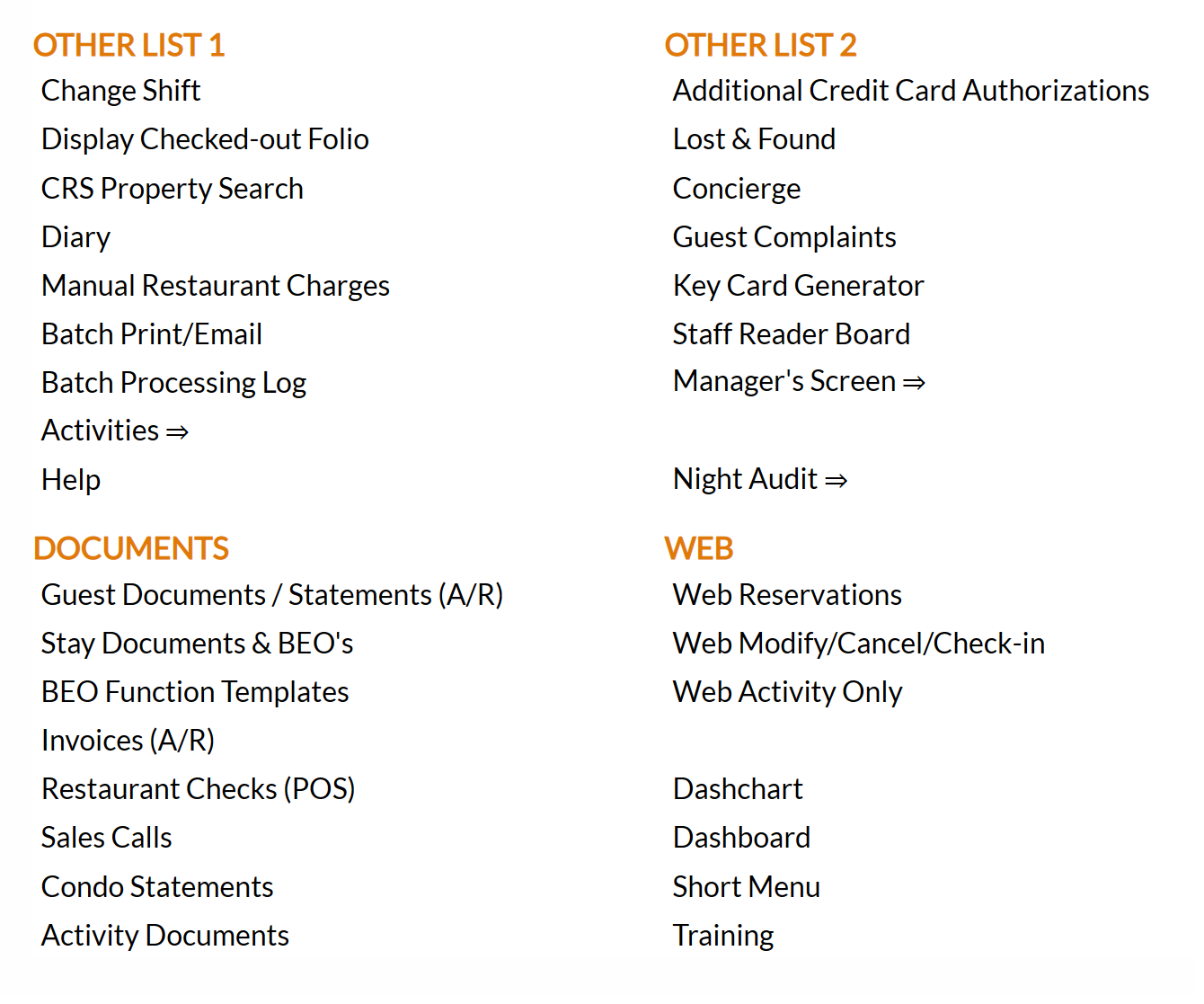
Select Manager's Screen to be taken to the Manager's Commands Menu.
 OR
OR 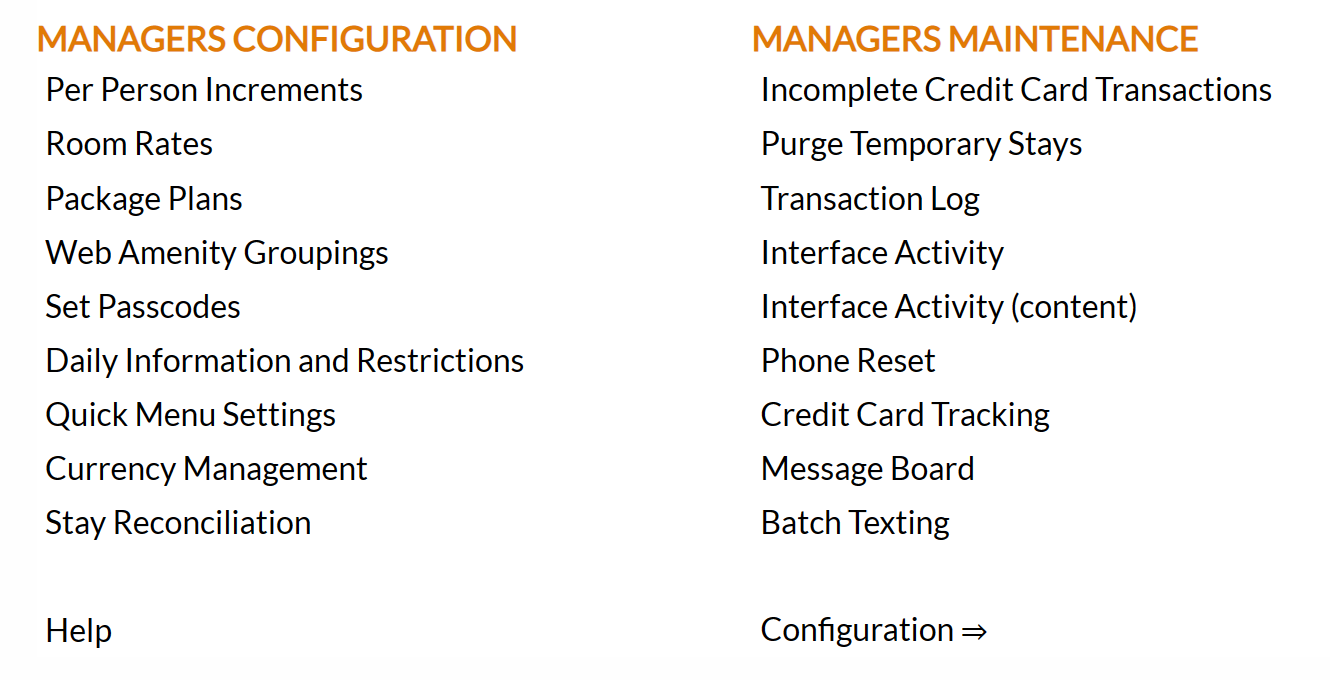
OR:
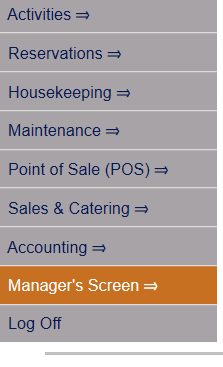
Select Manager's Screen from the Quick Menu on the left side of the screen, to be taken to the Manager's Commands Menu.
 OR
OR 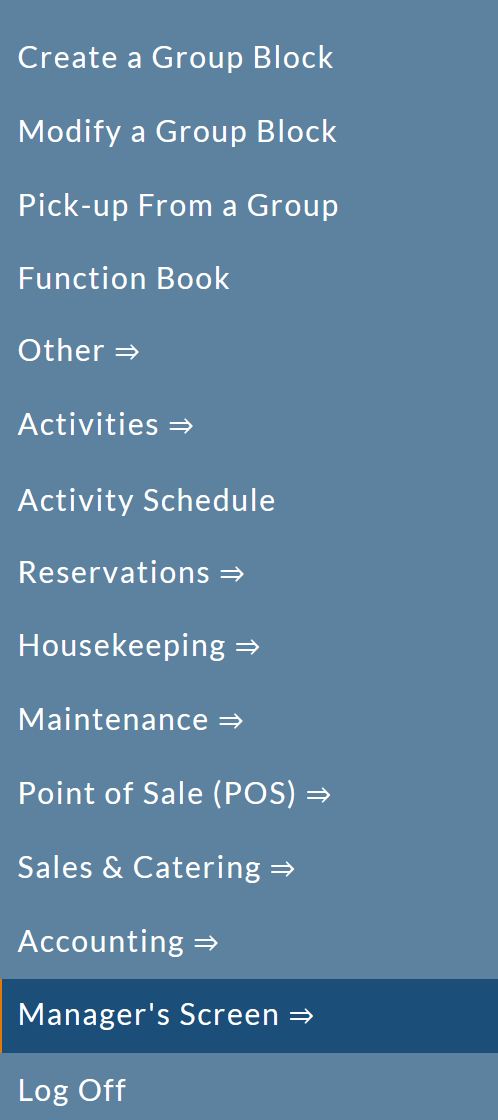
The Manager's Command Screen menu has two sections, Manager's Configuration and Manager's Maintenance.
 OR
OR 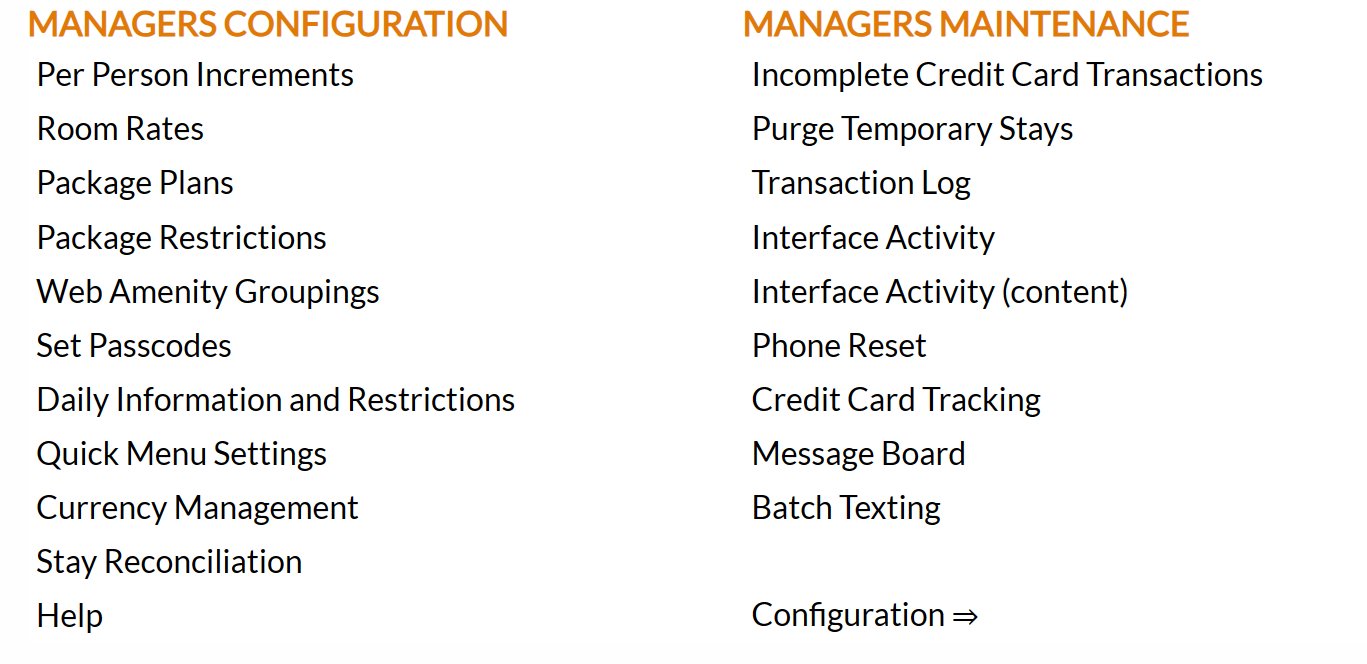
Select Purge Wait List from the Manager's Maintenance section.
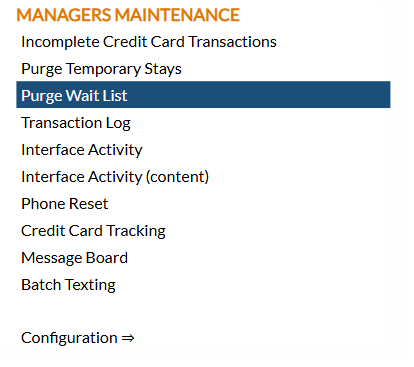
When selected, the Purge Wait List screen will open.
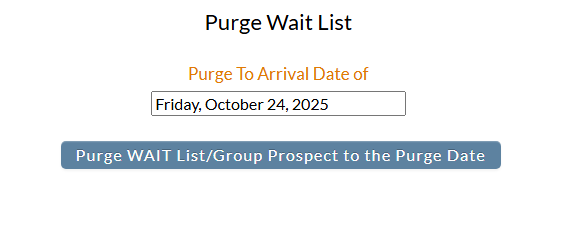
Purge To Arrival Date of: Select the date to which ALL Wait List entries will be purged. By default this is today's date. To change the selected date, click on the date field to open the calendar and select the desired date.
When ready, click the button "Purge WAIT List/Group Prospect to the Purge Date".
A pop up window will appear over the Purge Wait List screen, called the Purge Confirm window, asking if you are sure you wish to "Purge ALL WAIT List and Prospect Groups to the Arrival Date (of date selected)?" .
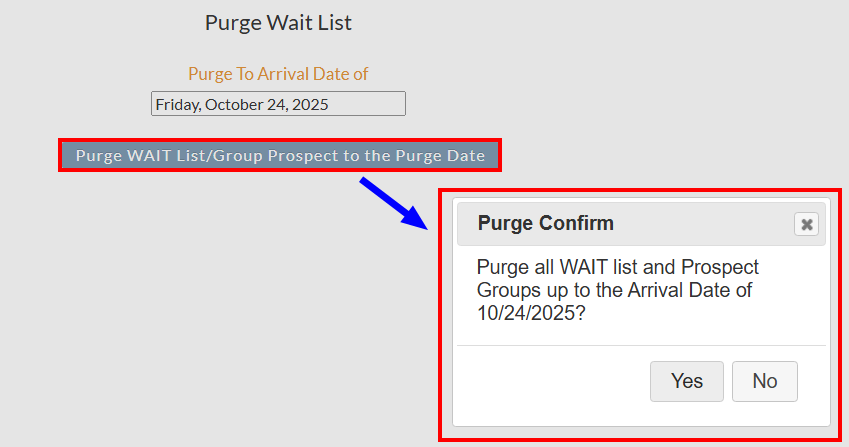
Click Yes to purge the Wait List (or no to close the pop up window and return to the Purge Wait List screen).
Note: Again, be very sure that you wish to do so before you click Yes as once done so the relevant Wait List data will be gone, removed from the records in Skyware.